
Contacts
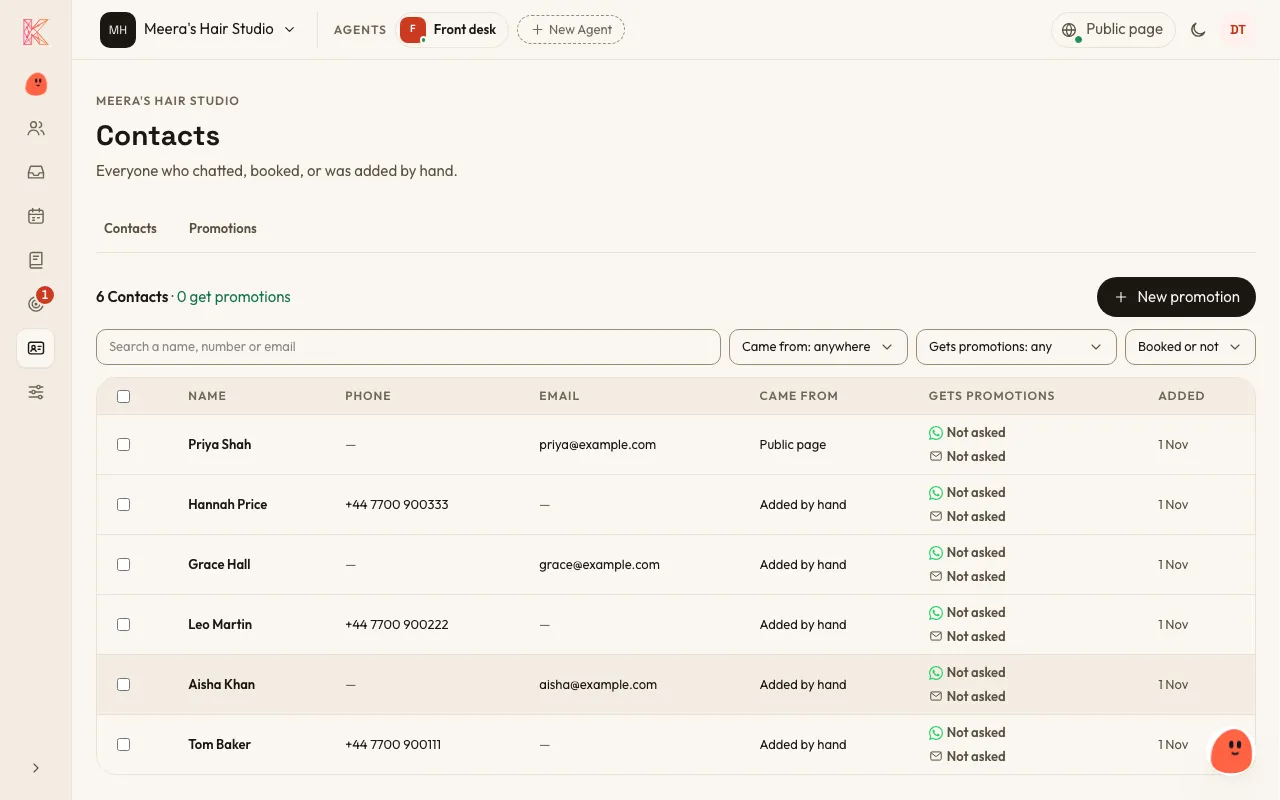
A Contact is anyone your Agent serves. A Contact can have a name, an email and a phone number, each optional. Your Agent asks for them when it books someone in or captures a Lead.
How Contacts are made
Section titled “How Contacts are made”- Each WhatsApp number becomes its own Contact, and so does each person who chats in your web widget or on your Public page.
- You can add someone who phones or walks in when you make a Booking for them, when you add a Lead by hand, or by asking Kriya.
- Owners and Admins can upload many at once from a file. See Upload Contacts.
Upload Contacts
Section titled “Upload Contacts”Bring your customers in from a spreadsheet, a billing app or your phone. On the Contacts page, choose Upload Contacts.
- The file: Excel (
.xlsxor.xls), CSV, or your phone’s contacts (.vcf). Its first row has the titles Name, Phone and Email, and each row after it is one person. Download the sample to see how. Leave out a column you don’t have. - Google Contacts: open contacts.google.com, choose Export, pick vCard, and upload that file.
- Up to 50,000 people at a time. Your file is read on your own device and never stored.
- Phone numbers: pick which country they’re from (India to start with). A number that starts with
+keeps its own country. Landlines are kept. - Who’s already here: a row with the same phone or email as one of your Contacts joins them. It only fills in a missing name, phone or email, and never changes one they have.
- Promotions: tick the box for a column only if those people agreed to get promotions from you, and are adults. Otherwise they’re added but stay Not asked. Someone whose number or email said stop earlier stays stopped.
- At the end you see how many were added, how many were already here, and how many rows couldn’t be read. Download those rows to see why, fix them, and upload them again.
An Upload never makes Leads.
Removing an Upload
Section titled “Removing an Upload”Uploaded the wrong file? Your Uploads, below the list of Contacts, shows each Upload: its file, who uploaded it, when, and how many it added. An Owner or Admin can choose Remove this Upload, or ask Kriya. It can’t be undone.
- Every Contact that Upload added is deleted, just as deleting a Contact works, unless they’ve since written to you, made a Booking or become a Lead. They’ve dealt with you, so they stay.
- Contacts who were already here stay, with whatever the Upload filled in.
- The confirm counts only those who’ll go, and says how many stay.
What your Agent remembers
Section titled “What your Agent remembers”Your Agents keep short notes about a customer from their Conversations, such as “prefers Meera” or “likes morning times”, and use them the next time that customer gets in touch.
- Everyone on your team can see these notes on the Knowledge page, under Your Agents remember Contacts.
- Owners and Admins can forget any of them.
- A customer can ask for something not to be kept.
Gets promotions
Section titled “Gets promotions”Each Contact shows whether they may be sent Promotions: Yes, Not asked, or Said stop.
- It becomes Yes when the customer says so.
- A stop is final until the customer changes it themselves. It stays with their number, even if the Contact is deleted.
- Owners and Admins can set a Contact to Don’t send promotions.
Changing many Contacts at once
Section titled “Changing many Contacts at once”Owners and Admins can change Gets promotions for many Contacts together.
- Tick the Contacts, or tick every row shown and choose Select all for everyone your search and filters match.
- Choose Edit on the bar at the bottom.
- Pick WhatsApp, email or both, then Yes or Don’t send.
- For Yes, say how they agreed, such as “Signed the form at the health camp, 3 Nov”, and confirm they agreed and are adults.
- Check the counts, with anyone it will skip or leave out, then confirm. There’s no undo.
- When it’s done, it counts what it did: “38 changed, 2 already set, 1 skipped because they asked to stop, 1 has no phone number.”
- Anyone who asked to stop is skipped for Yes. Anyone with no phone number is left out for WhatsApp, and anyone with no email for email.
- Anyone already set the way you chose still gets your note as their proof, and is counted as already set.
- Each Contact keeps your note, the time and your name as their proof.
- With thousands picked, it carries on in the background, and tells you what it did when it’s done.
- If any couldn’t be changed, it says how many and asks you to try again: “1,000 changed, 4,000 couldn’t be changed. Try again.”
- Kriya can set Don’t send for many Contacts when you ask. It never sets Yes.
Deleting a Contact
Section titled “Deleting a Contact”An Owner or Admin can delete a Contact for good, from Delete this Contact in their details or by asking Kriya. It can’t be undone.
- Their upcoming Bookings are cancelled, and they’re told.
- Their name, phone, email, Lead, Conversations and what your Agents remember about them are erased, usually within minutes and always within a day. KriyaOS’s backups keep a copy for at least 30 days before it’s gone.
- Their past Bookings stay, shown as Deleted contact.
- A Contact with a Booking starting within the hour can be deleted once it has started.
- If they get in touch again, they’re a new Contact.
- If you delete them by asking Kriya, your chat with Kriya stops showing them:
- What Kriya said about them alone is hidden, and so is what you said about them while deleting them.
- In a list of people, they show as Deleted contact in a bulleted list or table, and as “… and a deleted contact” in a sentence.
- A message that may be about someone else stays. For example, after you delete Rahul Mehta, “Rahul Verma booked Friday” still shows.
- A phone that Kriya only found in a search stays, and so does what you typed when you only looked them up, such as “Find Anita”.
- It’s hidden from view only, and only up to the delete. Kriya itself may still remember them, so if it brings them up after the delete, that shows.
- If you add them again later, your chat shows the new Contact.
- Other Members’ chats with Kriya, and your chat if you deleted them from their details, keep what Kriya showed, such as their name.