
Bookings
Let your Agent take bookings: turn on its Take bookings Ability, and it books customers into your real free times. It never double-books you or offers a closed day.
There are two things to set up: your Services (what people can book) and your Availability (when they can book it).
Services
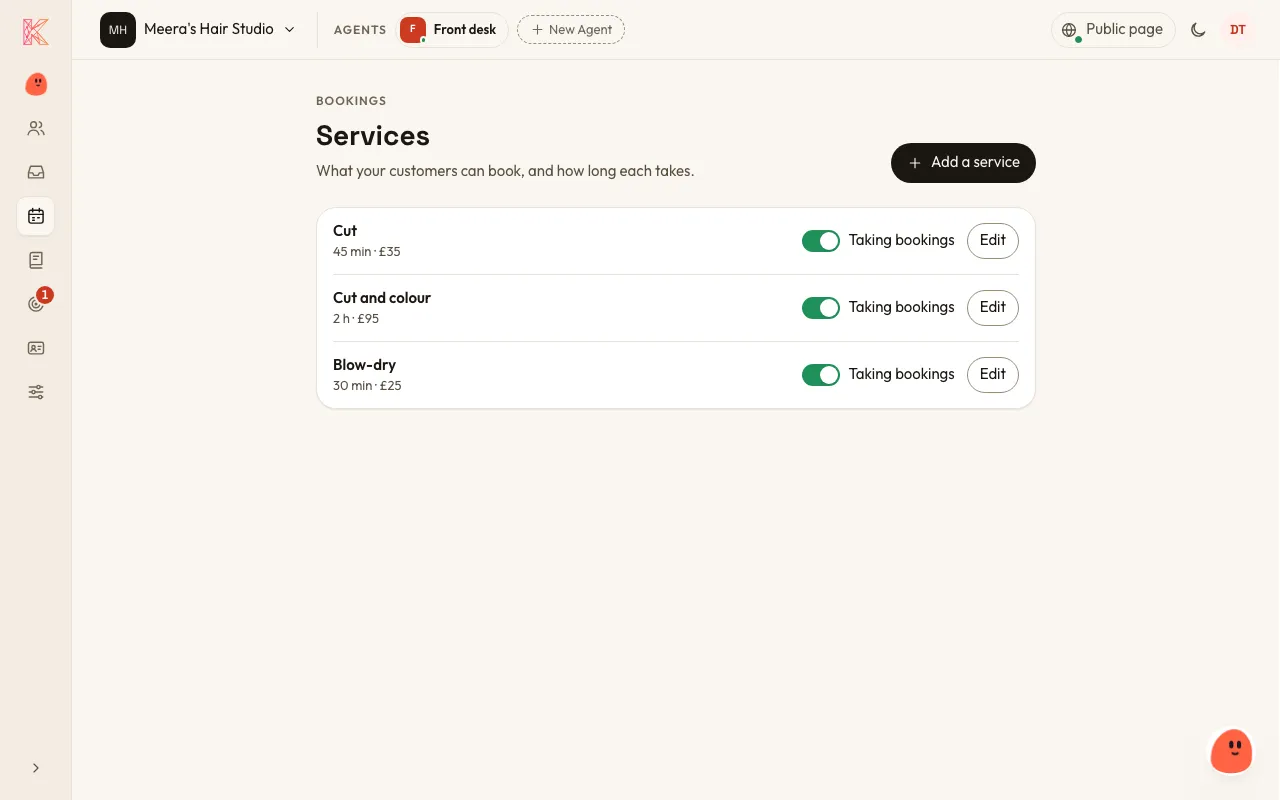
Section titled “Services”A Service is one bookable thing with a fixed length, such as a Haircut, a Consultation, a Trial lesson or a 60-minute Massage. Each Service has:
- a name, and an optional description your Agent tells customers
- its length
- the most people per Booking
- where it’s offered: one or more of your Locations, or none, for online work or work at the customer’s address
- the days it can be booked
- an optional price, in words
- whether it’s taking bookings. Pausing a Service keeps the Bookings it already has.
Go to Bookings → Services, or tell Kriya:
“Add a 45-minute consultation, £60, at the clinic, weekdays only.”
Availability
Section titled “Availability”You set Availability for each Location, plus one for Services that aren’t at a Location.
- Booking hours: your weekly hours, with several time ranges per weekday if you need them. A weekday with no hours is closed.
- Booking rules: the gap between Bookings, the earliest a Booking can start from now, and how far ahead customers can book.
- Capacity: how many Bookings can overlap at that place, shared across its Services. A salon with three chairs sets 3. A party of any size takes one place.
- Blocks: one-off times when nothing can be booked, such as a holiday, a half day or a training morning. Add a reason only your team sees. A new Block never cancels Bookings you already have.
Go to Bookings → Availability, or tell Kriya:
“We’re open Tuesday to Saturday 9 to 6, two chairs, 15 minutes between appointments, bookings up to 6 weeks ahead.”
“Block the 24th to the 2nd for Christmas.”
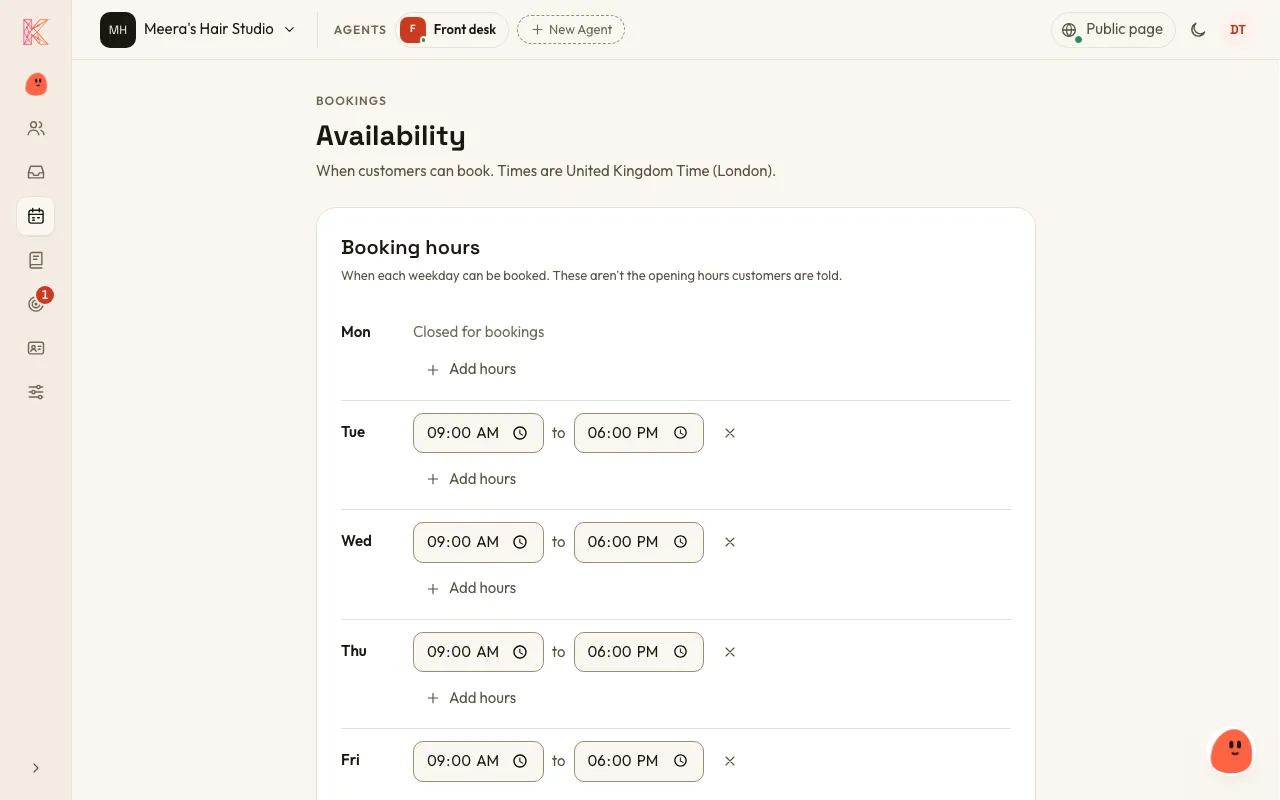
Your Agent follows your Availability exactly. You and your team can override any rule for a customer, and KriyaOS tells you which rule you’re overriding.
Your Bookings
Section titled “Your Bookings”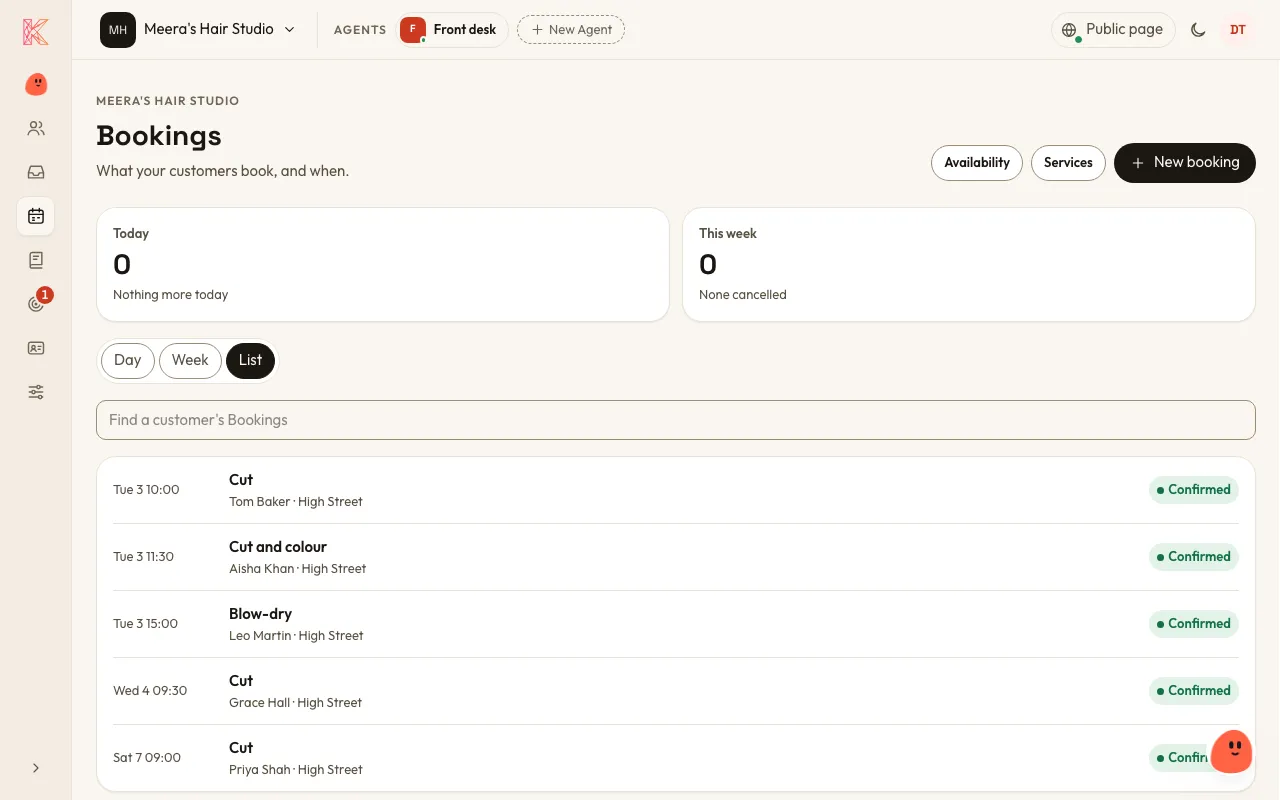
- Every new Booking is Confirmed. It becomes Done once it ends, Cancelled when the customer or your team cancels it, or No-show when you mark it after it started. Cancelled Bookings are kept, never deleted.
- Moving a Booking changes the same Booking.
- Every Booking belongs to one Contact and records who made it: your Agent, someone on your team, or Kriya for someone on your team.
- See your Bookings by day, by week or as a list on the Bookings page, in your business’s time zone. Customers are given times in your time zone, plus their own local time when it’s different and known.
Reminders and notices
Section titled “Reminders and notices”- Customers get a confirmation, then reminders a day before and two hours before: by email, or on WhatsApp if they booked there. You can turn each reminder off in Settings → Bookings.
- Your business email gets a notice when your Agent books, moves or cancels a Booking. You can turn that off too.
Google Calendar
Section titled “Google Calendar”Connect your Google Calendar in Settings → Bookings, and your upcoming Bookings are copied into it. KriyaOS only writes to that calendar; it doesn’t read your other events.
What a booking chat looks like
Section titled “What a booking chat looks like”Customer: Do you have anything Saturday morning for a cut and colour?
Agent: Saturday at 9:30 and 11:00 are free with us. A cut and colour takes about two hours. Which would you like?
Customer: 9:30 please.
Agent: Lovely. That’s a cut and colour, Saturday 14 June at 9:30 at the High Street salon. Can I take your name and an email for the confirmation?
Customer: Priya Shah, priya@example.com
Agent: Booked. You’ll get a confirmation now and a reminder the day before. Anything else I can help with?
Later, the customer can ask to move their Saturday Booking, and your Agent moves it within the same rules.